Streaming Experience Insights release recap: unified timeline, AI Alerts 2.0, agentic analytics
When a viewer complains about buffering during a live match, the operations engineer has to answer a simple question first: did the stall come from the CDN, or from an ad break? Until recently, answering it meant opening the video dashboard, then the ad dashboard, and lining up timestamps by hand.
Over the last four months, we have shipped a set of changes to Streaming Experience Insights (SEI, formerly Video Streaming Insights) to close this gap. It covers video, audio, ads, and app in one package.
In this post, I will walk through three of those changes: the unified timeline view in Nexa, AI Alerts 2.0, and how both of them set up agentic analytics (where an AI agent investigates the data for you instead of you navigating dashboards). I will also share where the platform is going next.
Unified timeline for video and ads
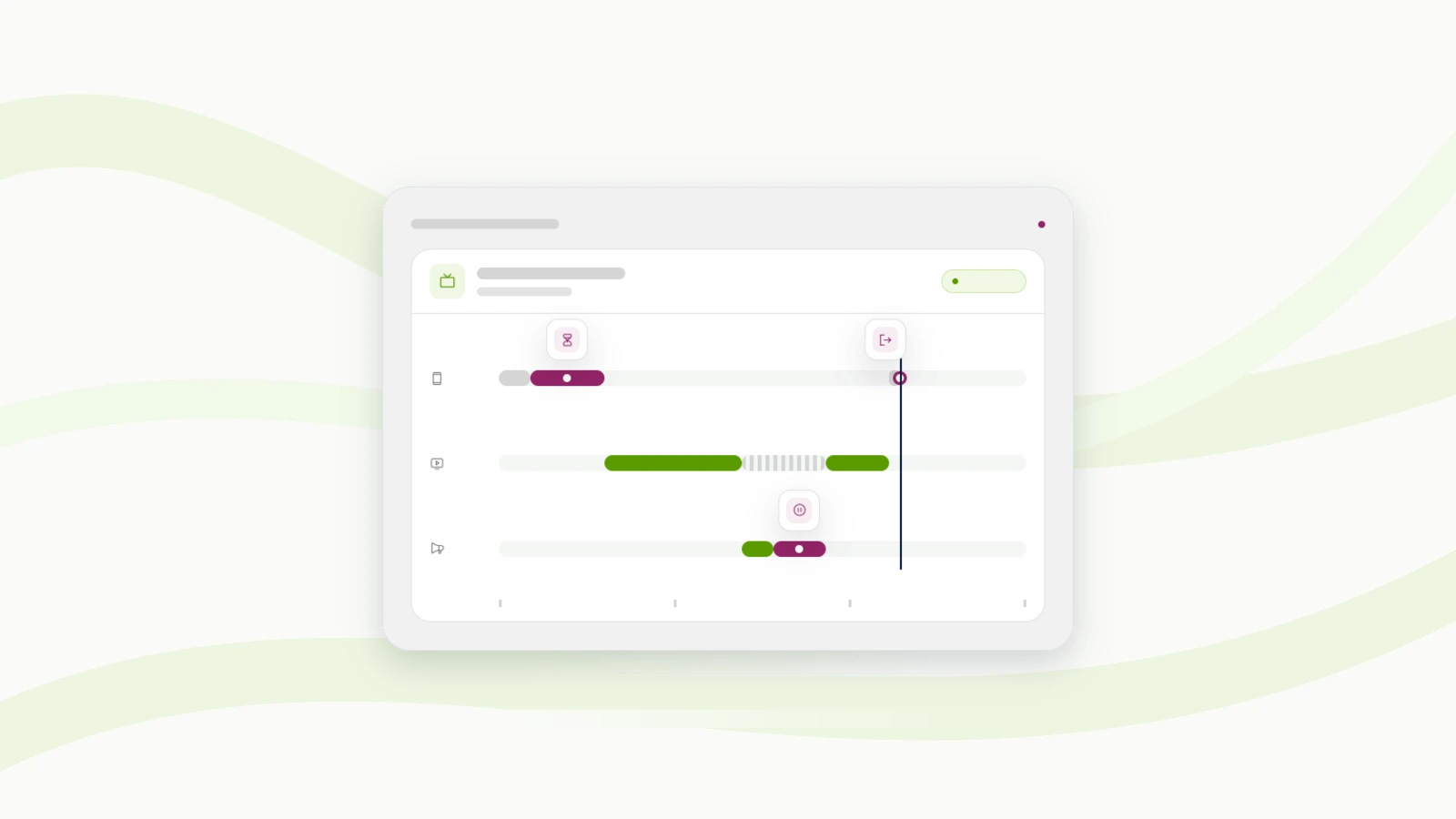
Let us go back to the engineer with the buffering complaint. When they investigate that viewer's session in Nexa, the unified timeline view now shows the video and ad events of that session on one time axis. So, they can see whether the stall started during an ad break or during content, without matching timestamps across two dashboards.
The engineer can also start from the Pulse screens they use every day. From any viewer or session row in the Viewer Module or in Trends, they can select Ask Nexa, and Nexa opens with that viewer's sessions and an impact summary already loaded. They ask their follow-up questions from there, instead of copying viewer IDs into another tool.
We also added Unique Viewers to provide a count of individual viewers watching any content instead of devices for any interval up to 24 hours within the last 30 days. If a viewer moves from their phone to their TV during a match, we count them once. Sessions without a Viewer ID are left out of the count.
Seeing video and ads together matters because some problems only show up when you look at both. During the World Cup, about 20 million people opened one publisher's live sports app in the ten minutes before kickoff. In that window, pre-roll ads failed to start 48 times as often as mid-roll ads. The failure was recorded as a start-failure number inside an ad report, so the team looking at viewer experience had no reason to see it. We wrote up the full analysis here.
AI Alerts 2.0
When we talked to customers about the first version of AI Alerts, we heard two repeated feature requests. Duplicate alerts fired at the same time for the same problem, and notifications often reached the wrong team. We released AI Alerts 2.0 in June to address both these gaps.
For duplicates, the issue was that a single CDN problem could trigger several CIRR alerts (CIRR is our connection-induced rebuffering ratio), each pointing to a different root cause. The new engine groups related alerts under the most impactful root cause, so the on-call engineer gets one issue to work on. Thresholds also adjust to the quality of the signal now, which removes most false positives before they reach anyone.
For better routing, each team now controls what it receives. A team can send CDN issues straight to the CDN team and subscribe to device-specific alerts, so iOS alerts no longer land in the inboxes of the Android and web teams.
We also made it easy for operations teams to monitor and alert on ad metrics again, starting with Ad Start Failures and Ad Rebuffering, so ad and video alerts run in one place. Check out AI Alerts in Pulse.
In August, we expanded what teams can monitor. The platform now offers additional metrics and dimensions for alerts to trigger on. Beyond the default set (CIRR, VSF-T, VPF-T, VST, and EBVS), a team can set its own threshold per severity on Abandonment, High Startup Time, High Rebuffering, and Low Bitrate. See this in the configuration guide.
We also added Mute Rules and Global Mute for planned maintenance. A team can mute one noisy slice of alerts, defined by dimensions, metrics, or both, on the channels it chooses. Global Mute silences every channel for up to 24 hours. Muted alerts still show up on the Alert Listing page, so nothing is lost, and the on-call engineer does not get paged for work the team already scheduled.
One question we hear often is how to pick the right threshold for a new service that has no history. A NOC team at a sports analytics platform had exactly this problem after onboarding. They asked Nexa to compute impacted devices per minute over the last 14 days, derive the mean and standard deviation, and recommend thresholds at one, two, and three standard deviations. So, the team had severity-tiered alerting from the first day, based on two weeks of its own data instead of a guess.
Agentic analytics on the same data
Nexa is the AI analyst inside Pulse. You ask it a question in plain language, and it investigates the data and returns an answer with recommendations. However, an agent is only as good as the data it can reach. Nexa works on the same session data, metric definitions, and alerts described above, and this is what lets it connect a symptom in one place to a cause in another.
Here is an example. A European broadcaster rolled out server-side ad insertion (SSAI, where ads are stitched into the stream on the server) on its live app. AI Alerts caught three critical spikes in video start time (VST) on Android TV, but the alerts could not explain why. The team asked Nexa one question, and Nexa correlated the video data with backend request data in a single pass. It traced the spikes to the ad-insertion host, which responded slowly whenever its cache missed. That host had 7.8 times more high-latency minutes than the live host over 48 hours, and its latency tracked VST with a correlation of about 0.97 over four days. Cache misses are normal for SSAI, so the team had treated them as expected behavior. With the correlation in hand, engineering got a specific fix: review the caching rules on the ad-insertion responses.
I cover Nexa's own releases, customer results, and roadmap in a separate Nexa post [link to published Nexa post].
Other updates
We also made two smaller changes. The Usage Dashboard now exports its time series and a per-account table in one file. And all our product documentation now lives at docs.conviva.ai, linked from the help links inside Pulse.
Where the platform is headed
Here is what we are working on next.
- Live latency during live events. During a live event, the platform will measure how far each viewer is behind the live edge of the stream (the latest point the broadcast has reached), and report it per session and across the whole audience. For sports, this is the delay viewers notice when a goal alert arrives on their phone before the goal reaches their screen. Operations teams will see that delay as a number.
- Percentiles in Pulse Trends. Trends charts will plot a metric's distribution across the selected time range, so a team can see whether the slowest 5% of sessions got worse even when the average stayed flat.
- Root cause for video start time. Conviva will show what is driving VST for a given audience, and which actions are most likely to improve it.
- Nexa inside AI Alerts. An engineer will open a Nexa investigation directly from an alert and get a likely cause within minutes. When an alert closes, Nexa will email its analysis. AI-assisted thresholds will reduce the manual tuning that teams do today.
- Custom metric ratios. Teams will define their own metrics, such as VPF-T per 1,000 playing minutes, which normalizes playback failures against the size of the audience.
Next steps
Unique Viewers, the additional alert metrics, and Mute Rules are turned on per account. If you want to try them, contact your Conviva account team.
If your team has not used Nexa or AI Alerts yet, I encourage you to try them now. A simple way to start is to open Nexa in Pulse and paste this prompt:
This viewer reported buffering last night. Summarize what happened across their sessions, name the likely cause, and show me the CDN and connection type for each session.
The Nexa post explains how to get access and how to set up a walkthrough with our team.